 Onwe Damian Chukwuemeka
If your website feels sluggish, you are likely losing visitors before they ever see your content. In 2026, Core Web Vitals remain the gold standard for measuring how your site actually feels to a human user. These metrics aren’t just technical scores on a report; they reflect real satisfaction levels. When a page takes too long to load or buttons jump around under a user’s finger, they leave.
You might think these speed markers only matter to search algorithms, but the impact on your bottom line is immediate. Faster pages result in lower bounce rates, higher engagement, and better conversion rates for your business. Because WordPress sites often struggle with heavy themes and excessive plugin use, optimizing these vitals is a mandatory task for anyone serious about growth. Whether you are driving traffic from Pinterest or relying on organic search, a slow site undermines your efforts.
Why Speed Directly Impacts Your Bottom Line
When a visitor lands on your site, they expect an immediate response. If the main content takes more than two seconds to appear, many users abandon the page entirely. This delay directly reduces your potential revenue. Every millisecond of latency creates a friction point that prevents a reader from becoming a customer or a subscriber. High-performing sites keep users interested, which increases the likelihood of them clicking an affiliate link or filling out a contact form.
Search engines prioritize these experiences because they want to satisfy their own users. Google tracks how your site performs across three distinct areas. First, it looks at how fast the largest visual element appears on the screen. Second, it measures how quickly your interface responds when someone clicks a button or taps a link. Finally, it calculates how much the layout shifts while the page loads. If your site performs poorly in these areas, your search rankings will suffer.
Retaining visitors is difficult if your site feels broken or unresponsive. A site that loads quickly and stays stable during the interaction process builds trust. When users find what they need without delay, they stay longer and interact more. This cycle of engagement is the foundation of a healthy, profitable website. Improving your scores does more than satisfy an algorithm; it creates an environment where your audience feels comfortable spending their time and money.
Understanding the Three Core Web Vitals
Google uses three specific metrics to judge your user experience. These Core Web Vitals focus on how a site feels during the initial load and when a visitor starts interacting with it. Think of them as a report card for your site’s physical behavior.
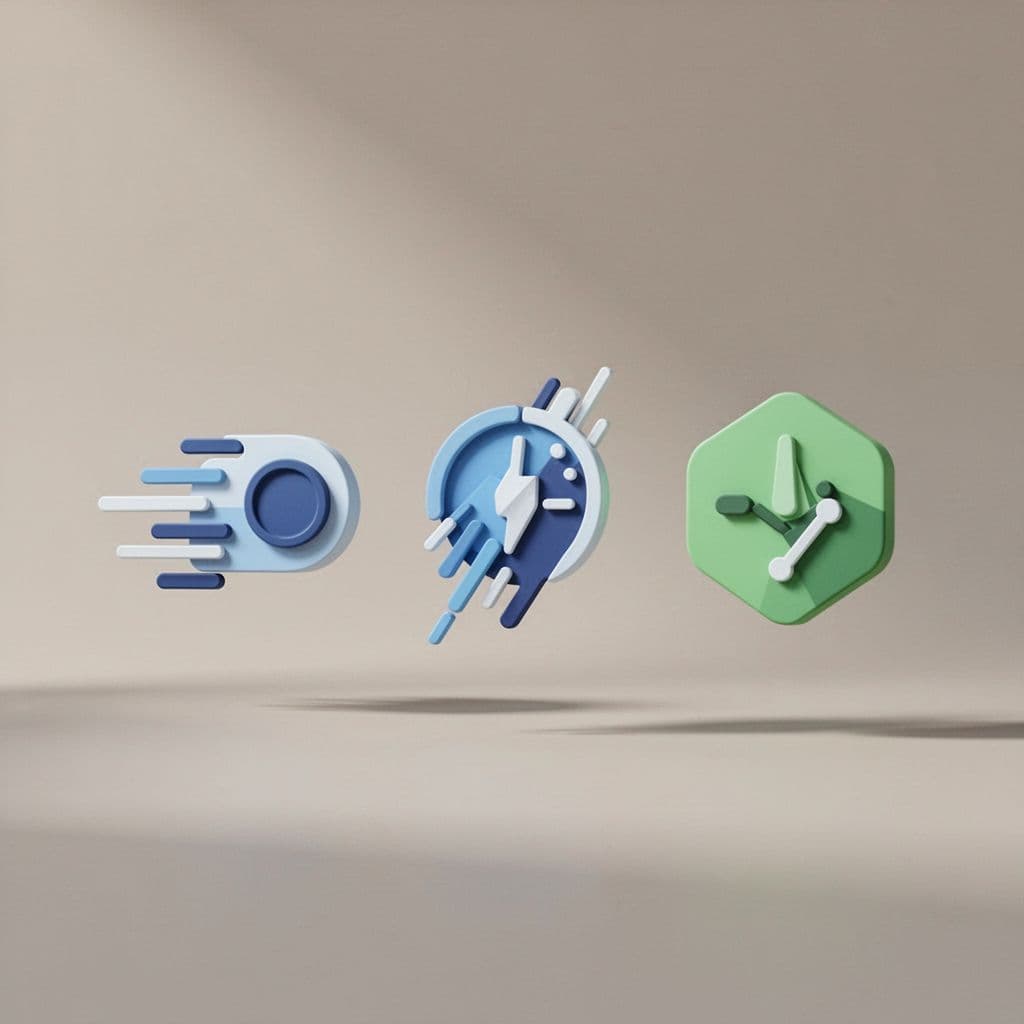
Largest Contentful Paint (LCP)
LCP measures how fast the main content of your page appears to a visitor. When a user arrives, they don’t care about background scripts or invisible code. They only care about seeing the primary image, video, or text block that brought them there.
If this main visual element takes too long to render, the visitor assumes the site is broken. Aim to have this main picture or text load within 2.5 seconds. Anything slower creates a perception of a sluggish, poorly maintained website.
Cumulative Layout Shift (CLS)
CLS tracks how much the page content jumps around while it loads. You have likely experienced the frustration of trying to click a button, only to have a late-loading advertisement push that button down at the last second. This happens when elements on the page don’t have reserved space.
Preventing stuff from jumping around is vital for building trust. When text or buttons shift unexpectedly, it leads to accidental clicks and user annoyance. Google rewards sites that keep their layout stable throughout the entire loading process.
Interaction to Next Paint (INP)
INP measures how quickly your site responds to user actions. This metric looks at the time between a person tapping a button or clicking a link and the visual change on the screen. It is essentially a test of how “snappy” your interface feels.
If a site takes too long to react to a click, the user feels like they are working against a laggy machine. You want your page to respond almost instantly. Keeping this delay under 200 milliseconds ensures your site feels responsive and polished, which is a core component of Google’s guidance on search results.
Boosting Your Largest Contentful Paint (LCP)
Improving your LCP score is often the most effective way to make your WordPress site feel faster. Because this metric tracks how quickly the main content appears, you should prioritize server speed and efficient image delivery above all else. If your foundation is slow, no amount of fine-tuning on the front end will provide a truly snappy experience.
Choosing the Right Hosting and Caching
Your hosting provider is the bedrock of your site’s performance. Cheap shared hosting often places your site on a server with hundreds of others, which leads to slow database response times and sluggish page loads. When your server struggles to process requests, your LCP score inevitably suffers because the browser sits idle while waiting for the initial data.

Performance-focused hosting, such as managed WordPress plans or virtual private servers, gives your site dedicated resources. These environments are tuned for speed, which keeps your server response times consistently low. In addition to high-quality hardware, you need robust caching to keep your site lean.
Object caching like Redis is one of the most effective tools for database optimization. It stores the results of complex database queries in memory. Instead of forcing your server to rebuild the same data for every visitor, Redis provides the information instantly. This single change can drastically reduce the time it takes for your server to start sending data to a visitor’s browser.
Mastering Image Delivery for Speed
Images are usually the largest elements on a page, which makes them the primary targets for LCP optimization. If your main hero image is heavy or poorly formatted, it will drag down your score every time. You should always use modern, lightweight file formats like WebP or AVIF instead of older formats like JPEG or PNG. These newer formats provide high quality at a fraction of the file size.

Resizing your images before you upload them to your media library is also mandatory. A common mistake is uploading a massive, high-resolution photo and letting the browser shrink it to fit the page. This wastes bandwidth and forces the user to download unnecessary data. You should always upload images at the exact dimensions they will appear on your site.
Beyond file types and sizes, how you load these images matters immensely. Never lazy-load your top-of-page banner image. Lazy loading is designed to delay images that are off-screen, but applying it to your hero image will actively hurt your LCP score by forcing the browser to wait for a script to run before it even attempts to show the main visual. Instead, you should tell the browser to prioritize this image by adding fetchpriority="high" to your image tag. This simple addition instructs the browser to download your main content as fast as possible. Using a content delivery network (CDN) alongside these practices will further ensure that your images reach users from a server close to their physical location, minimizing latency even more.
Fixing Layout Shifts to Prevent Frustrating Jumps
Cumulative Layout Shift, often called CLS, measures how much your website content moves while it loads. You have likely felt the annoyance of reading an article when a slow-loading image or advertisement suddenly pops in and pushes your text down. This forces you to lose your place or, worse, leads to an accidental click on the wrong link. Google tracks these movements because they create a poor experience that makes a site feel broken or unreliable. A stable page is a trustworthy page, and keeping your content in place is essential for visitor retention.

Reserve Space for Dynamic Content
The primary cause of layout shifts is dynamic content like advertisements, embedded videos, or email popups that load after the rest of the page. Browsers don’t know how much space these items need until they finish downloading, so they simply collapse the area to zero height initially. Once the content arrives, the browser shoves the existing page components down to make room.
You can stop this by using CSS to reserve space ahead of time. Wrapping your ads or iframes in a container with a fixed aspect ratio ensures the browser allocates the exact amount of space needed before the element even appears. This technique allows the page to maintain its structure while the dynamic components fill in the gaps silently. You can find more detail on how to fix Cumulative Layout Shift on WordPress if you need specific guidance on implementing these containers.
Set Image Dimensions Explicitly
Images are frequent culprits for layout shifts because they often lack defined height and width attributes. When you upload an image without these, the browser cannot determine the correct aspect ratio until the file is fully processed. It renders the text first, then snaps the image into place, causing everything below it to jump.
Always ensure your image tags contain height and width attributes or utilize CSS to set a defined aspect-ratio for responsive containers. This simple change tells the browser exactly how much room to hold for the image before it downloads. By providing these details, you prevent the page from recalculating its layout mid-load. Remember that these dimensions act as a blueprint for the browser, making the rendering process much smoother. If you are struggling with specific elements, reviewing how to fix CLS in WordPress provides practical steps to eliminate these visual jumps effectively.
Manage Fonts and Overlays
Web fonts also contribute to shifts if the browser swaps a system font for a custom one after the page renders. This is known as a flash of unstyled text, and it often changes the line height or character width, causing a slight jump in the surrounding content. Use font-display: swap to manage this transition while choosing a fallback font that closely matches the weight and spacing of your primary custom font.
Additionally, avoid using popups or banners that insert themselves into the middle of your page flow. If you must use them, set them to appear as overlays that sit on top of your content rather than pushing it down. Treating your page layout as a fixed structure that doesn’t move after the initial render will improve your site stability and keep your users happy. For a deeper look at addressing these common issues, see how to eliminate layout shift for further technical strategies.
Improving Interaction to Next Paint (INP)
When a user clicks a button or taps a link, they expect an immediate response. If your site stays frozen for even a fraction of a second, the experience feels broken. This metric, known as Interaction to Next Paint (INP), captures that specific delay between the user action and the visual update on the screen. A high INP score is a major warning sign that your site is struggling to process inputs efficiently.

Often, the browser becomes overwhelmed by a flood of background tasks. If it is busy parsing heavy scripts or managing complex layout updates, it cannot acknowledge a user’s click. You need to keep the main thread of the browser as clear as possible so it remains ready to act the moment a visitor interacts with your content.
Trimming the JavaScript Fat
JavaScript is the primary engine behind most interactivity, but it is also the most common cause of input lag. When you load dozens of scripts for sliders, popups, and tracking tools, the browser must execute all of that code before it can handle a simple tap. If you want to improve responsiveness, you must identify which scripts are clogging your pages.
Start by using tools like Google PageSpeed Insights or Chrome DevTools to see which files take the longest to execute. Look specifically for “long tasks” in the performance trace, as these indicate code that blocks the browser from responding. Once you identify these heavy offenders, you have a few ways to manage them:
- Remove unused features: If a plugin runs code on every page but you only need it for your contact form, disable it on all other pages. Many performance plugins include a script manager that lets you selectively load files exactly where they belong.
- Delay non-essential scripts: Tools like Perfmatters or WP Rocket allow you to pause third-party scripts until a user interaction occurs. This ensures the browser stays idle and responsive until someone actually clicks or scrolls.
- Minify your code: Minification strips out unnecessary spaces and line breaks, making your files smaller and faster to parse.
Be cautious with delaying scripts, as doing it too aggressively can break functionality. You should always test your site thoroughly after changing how your scripts load. For a better understanding of how these background processes affect performance, see how to reduce JavaScript execution time on your specific configuration.
The Role of Lightweight Themes and Plugins
The foundation of your site matters as much as your specific optimizations. Many WordPress users fall into the trap of installing heavy, multi-purpose themes that pack in thousands of lines of code just to provide a few visual options. This “code bloat” is a massive drain on browser resources that directly impacts INP.
When a theme is packed with unoptimized code, it forces the browser to work harder just to display basic elements. Choosing a lightweight, performance-focused theme is the single most effective way to start with a clean slate. A fast theme typically limits its reliance on complex JavaScript, which keeps your main thread clear and ready for user interactions.
In addition to your theme, you should audit your plugin library regularly. Every plugin you add is another potential source of overhead. You should replace heavy page builders or feature-packed plugins with simpler alternatives that only perform the tasks you truly need. Consider these steps to keep your installation lean:
- Audit every plugin you currently have installed.
- Deactivate and delete anything that does not provide clear, ongoing value to your visitors.
- Replace broad, resource-heavy plugins with lightweight ones that perform a single function well.
- Remove heavy third-party elements like embedded chat widgets or tracking pixels that are not essential for your business goals.
Third-party scripts often create significant delays because they load external code that you cannot directly control. If a chat widget takes five seconds to initialize, it might block the browser entirely during that window. If you must use these tools, look for options that support lazy loading or manual initialization. By prioritizing simplicity, you create an environment where the browser can focus on rendering content and responding to clicks, rather than managing a mountain of unnecessary technical debt.
Conclusion
You now have a clear roadmap to improve your WordPress performance. Start by upgrading to high-quality hosting and caching to give your site a solid foundation. Fix your hero images by setting proper dimensions and removing lazy loading from top-of-page assets. Minimize heavy JavaScript to keep interactions snappy, and use CSS containers to lock your layout in place, preventing frustrating content jumps.
Consistency is your biggest ally in this process. Use Google Search Console to keep an eye on your real-world performance metrics, and run regular tests with PageSpeed Insights after every theme or plugin update. By staying on top of these technical details, you build a faster, more reliable experience for your visitors. Small, frequent improvements eventually lead to a site that users love and search engines reward.
Save pin for later


- How I Make Money on Pinterest Pinning in 2026 - June 23, 2026
- How to Research Pinterest Keywords for Blog Posts In 2026 - June 23, 2026
- How to Set Up Google Search Console for a Blog - June 23, 2026